

Personalization
Use template variables to personalize each message with recipient data.
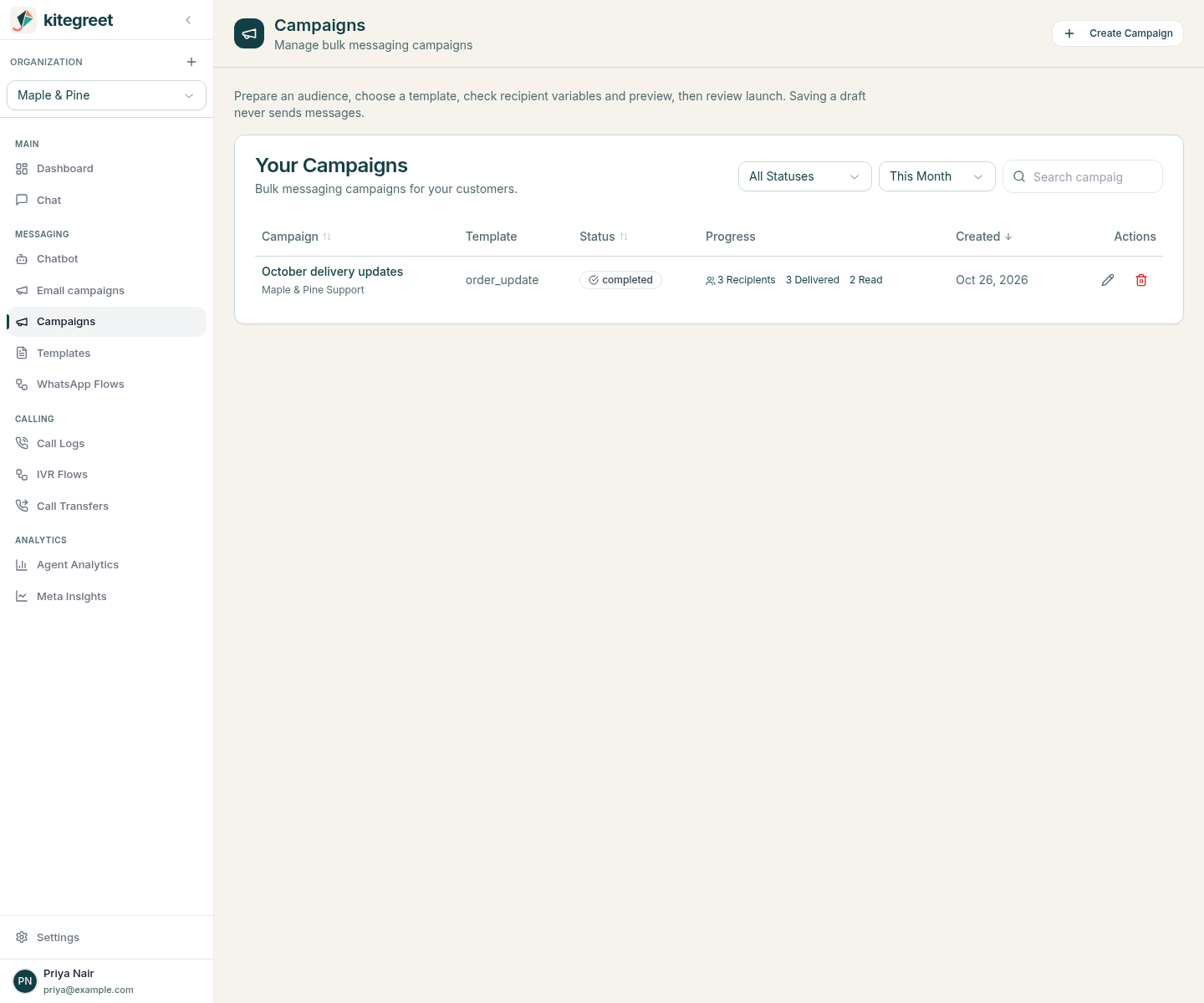
Campaigns allow you to send bulk WhatsApp messages to multiple contacts at once. Whether you’re sending promotional offers, updates, or notifications, KiteGreet handles the delivery efficiently while respecting WhatsApp’s rate limits.
Select Template
Choose an approved message template for your campaign.
Define Audience
Select contacts or upload a contact list for targeting.
Set Variables
Configure template variables for personalization.
Schedule (Optional)
Schedule the campaign for a specific date and time.
Review & Send
Review the campaign details and send or schedule it.
You can add recipients to a draft campaign in three ways. Adding recipients never sends messages.
From contacts is the default tab in Add Recipients. Use it to reach contacts already saved in KiteGreet:
Saved contacts don’t carry per-message values, so you choose what fills each template variable:
| Source | Value used |
|---|---|
| Contact name | The contact’s name, or the text you enter for contacts without one (for example “there”) |
| Phone number | The contact’s phone number |
| Same text for everyone | The text you enter, such as a discount code |
Before you confirm, the dialog shows how many recipients will be added and how many are skipped:
+91 98000 00001 and 919800000001 count as the same number).Users without contacts:read can only add contacts assigned to them, the same contacts they see in the contact list.
Add recipients one at a time by entering:
For bulk imports, upload a CSV file with your recipient data:
Prepare Your CSV
Create a CSV file with columns for phone number, name, and template parameters:
phone,name,param1,param2+1234567890,John Doe,Order #123,December 25+0987654321,Jane Smith,Order #456,December 26TEXT header parameter: if the template’s header has a variable
({{...}}), add a column named header. Meta indexes positional
placeholders per component, so header {{1}} and body {{1}} are two
distinct values — the reserved column name avoids that collision. The
header column always comes before the body parameter columns. For
example, a template with header Our {{season}} sale and body
Hi {{customer_name}}, use code {{coupon}}:
phone,name,header,customer_name,coupon+1234567890,John Doe,Summer,John,SAVE20+0987654321,Jane Smith,Winter,Jane,SAVE15The recipient dialog also provides a Download sample CSV link that generates a template with the correct columns for your campaign’s template — no manual setup required.
Upload and Validate
The system automatically validates your CSV against the selected template:
Review and Import
Preview the validation results before importing:
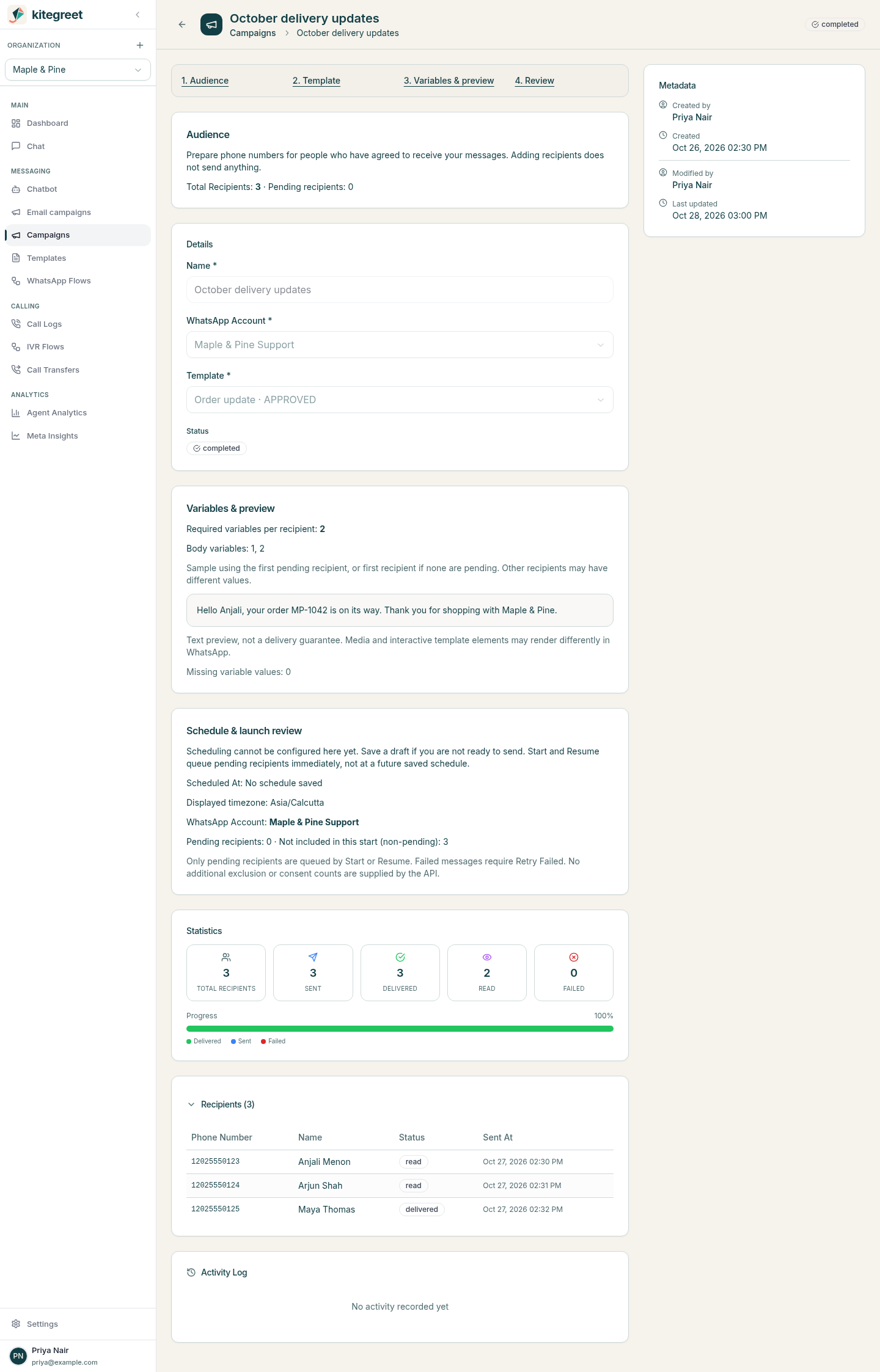
Track your campaign performance with detailed analytics:
| Metric | Description |
|---|---|
| Total | Total number of recipients |
| Sent | Messages successfully sent |
| Delivered | Messages delivered to recipients |
| Read | Messages opened by recipients |
| Failed | Messages that failed to send |
The campaign itself moves through a lifecycle, shown on the campaign card and detail page:
| Status | Meaning |
|---|---|
| Draft | Created but not yet queued for sending |
| Scheduled | Set to start at a future date/time |
| Queued | Handed off to the send queue, waiting for a worker |
| Processing | Workers are actively sending messages |
| Paused | Sending temporarily halted; can be resumed or retried |
| Completed | All recipients processed |
| Cancelled | Stopped by a user; no further sends |
| Failed | Campaign could not complete |
Each recipient’s message status is tracked individually:
Each failed recipient also records a failure reason — the error message returned by WhatsApp (e.g. an invalid number or a template mismatch) — so you can see exactly why a message didn’t go out and fix the data before retrying.
While a campaign is queued or processing you can pause it to halt sending, then resume it later. A campaign can also be cancelled, which stops it for good.
On a completed, paused, or failed campaign, use Retry Failed to re-queue every recipient whose message failed. KiteGreet resets those recipients back to pending, clears their previous error, and puts the campaign back into processing — recipients that already succeeded are left untouched, so no one is messaged twice.
Personalization
Use template variables to personalize each message with recipient data.
Scheduling
Schedule campaigns for optimal delivery times.
Rate Limiting
Automatic rate limiting to comply with WhatsApp policies.
Analytics
Real-time tracking of delivery and engagement metrics.